What type of demo would you like?
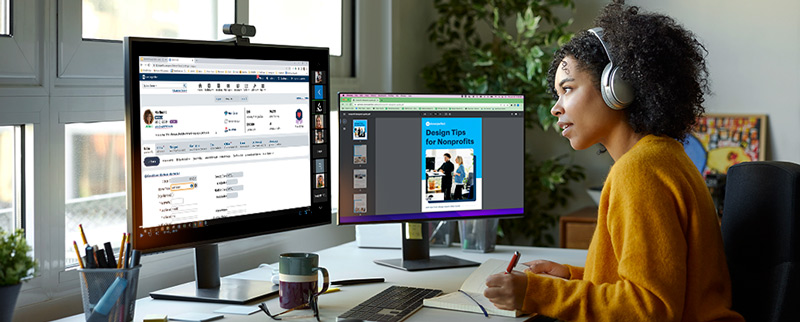
A demo will offer you an overview of the functionality of the DonorPerfect Fundraising Growth Platform.
Personal Demo
Get a 1-on-1 needs assessment and demo that’s tailored to your organization’s unique needs.
SIGN UP
Group Demo Webinar
See a guided tour of DonorPerfect that covers all the key features and benefits of the software.
SIGN UP
Not ready for a demo? Give us a call at 800-220-8111 or click here to submit your contact info and we’ll be in touch soon.
Group Demo
Pick a time to attend a US Group Demo. Not in the United States? For a Canadian Demo click here.
Monday, June 8th
1:00 – 2:00 PM
EASTERN STANDARD TIME
Select
Friday, June 12th
12:00 – 1:00 PM
EASTERN STANDARD TIME
Select
Wednesday, June 17th
2:00 – 3:00 PM
EASTERN STANDARD TIME
Select
Monday, June 22nd
1:00 – 2:00 PM
EASTERN STANDARD TIME
Select
Monday, June 8th
1:00 – 2:00 PM
Friday, June 12th
12:00 – 1:00 PM
Wednesday, June 17th
2:00 – 3:00 PM
Monday, June 22nd
1:00 – 2:00 PM